
If you just want the short answer: start with the free monthly budget template that’s already built into Google Sheets, or the budget templates inside Excel if you live in Excel. Prefer paper? Go with a printable worksheet like the ones from the CFPB. The best template is simply the one you’ll open again next week.
This guide comes from the WeirdWealth editorial team. We went through 2026 roundups from Tiller and other template libraries, plus the CFPB’s budgeting worksheets, to see what’s really out there. We haven’t tested every file ourselves, so we’ll stick to what each one is built for and where it might frustrate you.
Key Takeaways
- There’s no one “best” template for everyone. Choose based on how you budget and which app you already use.
- Google Sheets is great for sharing and works well on your phone. Excel is better if you work offline or want to customize a lot.
- Printable worksheets are perfect if you like pen and paper and don’t want any setup.
- A simple template you actually use beats a fancy one you’ll drop after two weeks.
- Be careful with anything that asks for your bank login. A basic template never needs it.
What Is a Budget Template, and How Does It Work?
A budget template is a sheet that’s already set up for you. Your income and spending have their own spots, so all you do is type in the numbers. It adds everything up on its own. Most people get started in about 10 minutes. You can find templates for Excel, Google Sheets, or as a PDF you print out.
Why use one? Because it’s easier to decide where your money goes at the start of the month than to figure out where it went at the end. Put your rent, food, and bills on one page and you’ll quickly see the small stuff that keeps eating your cash.
Free Budget Templates at a Glance
Here’s a quick look before we get into the details.
| Template | Best for | Watch out for |
|---|---|---|
| Google Sheets Monthly Budget | Beginners, couples, phone users | Pretty basic |
| Excel budget templates | Offline work, custom formulas | Can feel overwhelming |
| Vertex42 | No-frills spreadsheet fans | Plain look |
| Tiller Foundation (Sheets) | Automatic tracking | Auto-import may be paid |
| CFPB worksheets | Paper lovers, first-timers | Manual math |
The Best Free Budget Templates, One by One
1. Google Sheets Monthly Budget
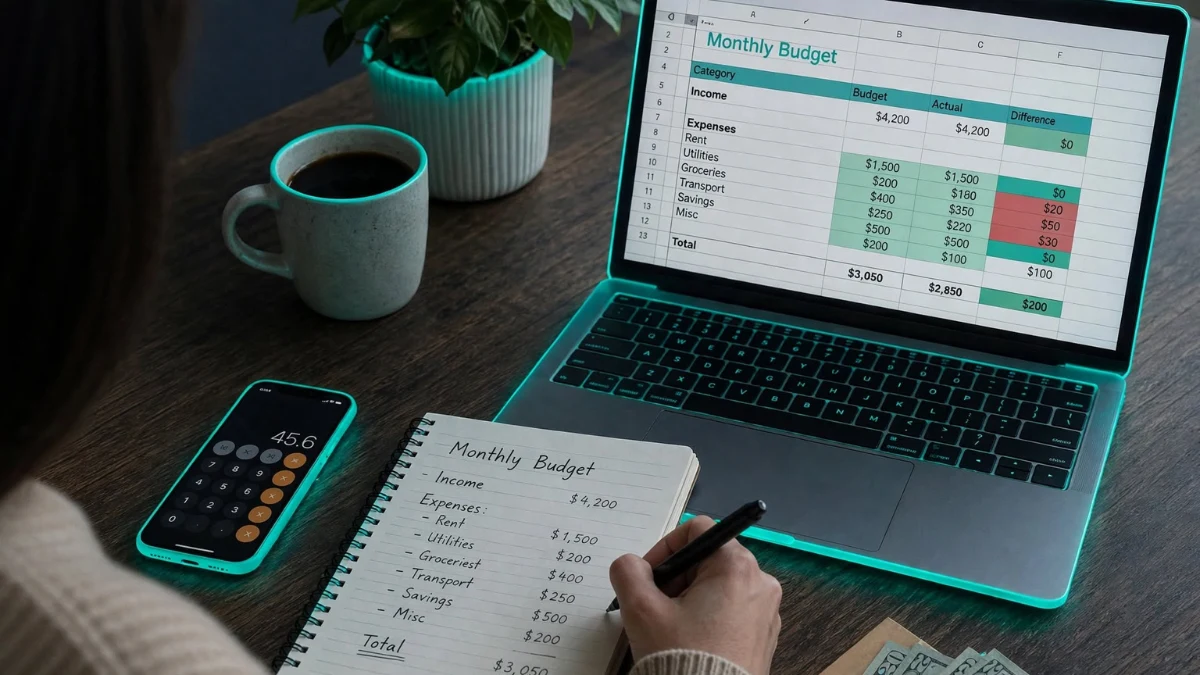
This one’s already inside Google Sheets. Open the template gallery, look under Personal, and it’s there, ready to use. You get income and expense sections, and it works on the free Sheets mobile app too. If you’re new to budgeting or sharing money with a partner, this is the easiest place to start. The trade-off is that it’s fairly basic, so you may outgrow it.
2. Microsoft Excel Budget Templates
If Excel’s your daily tool, go to File, then New, and search “budget.” You’ll find monthly, personal, and yearly options. Excel templates are the better pick when you want offline access and full control over formulas and formatting. The downside? More options can mean more clutter, so choose the simplest one that fits.
3. Vertex42 Monthly Budget
Vertex42 has been making Excel templates for 20+ years, and its free personal budget template includes monthly summaries and works in both Excel and Google Sheets. It’s a solid, no-frills pick for people who don’t mind a plain look. Always download from the official site.
4. Tiller’s Foundation Template
Tiller’s spreadsheet team tested a list of free Google Sheets templates for 2026, and the Foundation Template has a free version. It’s aimed at people who want less manual typing. One thing to check, though: the automatic bank import is tied to Tiller’s own service, and that part may not be free. So decide whether you want a plain spreadsheet or a connected one before you start.
5. CFPB Budgeting Worksheets
The Consumer Financial Protection Bureau offers a monthly budgeting worksheet, a spending tracker, and a bill planner, all free. They’re government-made, simple, and walk you through income, fixed bills, and flexible spending. These are perfect if you like pen and paper or want a no-pressure first try. The catch is that you’ll do the math yourself, and that gets old if your spending changes a lot.
Other Options Worth a Look
Smartsheet’s Google Sheets library covers weekly, bi-weekly, household, zero-based, 50/30/20, and college budgets. Canva is handy for printable, good-looking versions. Need something specific, like a college budget? Start there before building your own. uibakery
Which Template Should You Pick?
Ask yourself three quick things. Do I want to use my phone? Then go with Google Sheets. Do I like formulas and offline files? Excel. Do I hate screens? Print a worksheet. And if you share money with someone, Google Sheets wins for real-time collaboration, so a sheet you both can edit makes life much easier.
Which Budgeting Method Works With These?
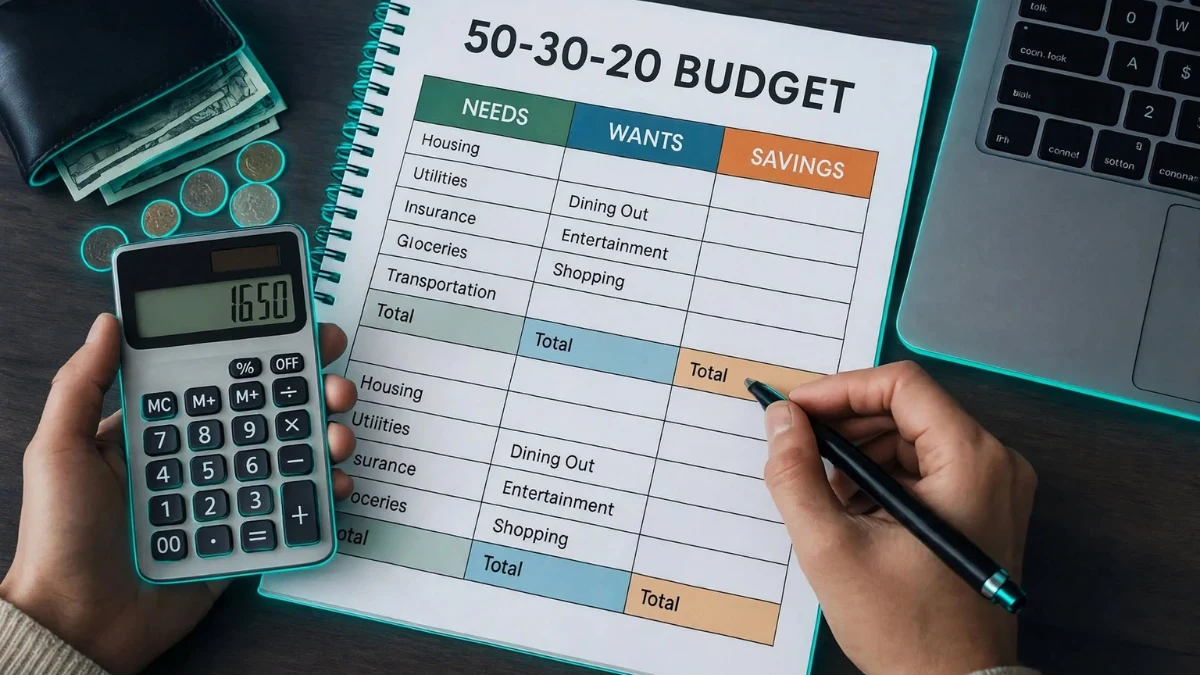
A template is just a table until you give it a rule. Two common methods are easy to try. The 50/30/20 method puts about half your income toward needs, 30% toward wants, and 20% toward savings or debt. Zero-based budgeting gives every dollar a job, so your income minus planned spending equals zero.
Neither method is the “right” one. The 50/30/20 method is more flexible and works well for beginners. Zero-based budgeting takes more effort but helps you see exactly where your money goes. You can also use your budget to plan debt repayment and track extra income from activities like watching videos. If you earn money from crypto or other sources, remember to account for possible crypto taxes. Many templates, including Smartsheet’s, support different budgeting styles, so try one and switch if it doesn’t fit your routine.
How to Set Up Your Template in 15 Minutes

Here’s a simple routine that works with any template, digital or paper.
- Start with your income. Write down what you earn each month. If it changes, use the lowest number so you’re never counting on money that might not show up.
- List your fixed bills first. Rent, utilities, phone, loan payments, the stuff you have to pay no matter what.
- Add your flexible spending. Food, transport, fun money. Look at last month’s bank statement for the real numbers instead of guessing. You’ll probably be surprised.
- Don’t forget the sneaky ones. Subscriptions, car repairs, yearly fees. A lot of people skip these and then get caught off guard when the bill arrives.
- Set a weekly reminder. Five minutes is all it takes to update your sheet and stay on track.
Mistakes That Make People Quit Budgeting
Most people quit for boring reasons:
- Picking a template that’s too complicated. If it takes an hour to update, you won’t.
- Never opening it again after the first week.
- Guessing amounts instead of checking real spending.
- Treating the budget as a punishment. Leave room for fun money, or you’ll break it.
How to Download Free Templates Safely
Free doesn’t always mean safe. The best places to look are official ones: Google’s template gallery, the templates built into Microsoft Office, and government sites like the CFPB. If you grab a file from a random blog, make sure your antivirus is on first. And if a file asks you to turn on macros or enter your bank login, close it right away. A basic budget template never needs either one.
When Should You Move Beyond a Free Template?
Spreadsheets are great, until they start feeling like a second job. If you’re spending more than a few minutes a week typing in transactions, a budgeting app that pulls them in automatically might make life easier.
Just think about the trade-off first. Many of these apps charge a monthly fee, and a lot of them ask to connect to your bank accounts through a third-party service. That’s not for everyone.
Also, if you’re a freelancer or your income goes up and down, look for a template with a flexible income row instead of one built around a fixed salary.
FAQs
What’s the best free budget template for beginners?
Go with the built-in monthly budget in Google Sheets. It’s free, already set up for you, and works great on your phone. If you’d rather use paper, the CFPB’s monthly budgeting worksheet is a good pick.
Is Excel or Google Sheets better for budgeting?
Honestly, neither wins every time. Google Sheets is easier for sharing and syncing across your devices. Excel is better if you work offline or want to customize a lot. So just pick the one you already open every day.
Are free budget templates really free?
The ones from Google, Microsoft, and the CFPB are completely free. Some other sites give you a free version but push a paid one, or charge extra for things like bank syncing. So check what’s actually included before you download.
How often should I update my budget?
Once a week works well for most people, plus a bigger look at the end of the month. If your spending changes a lot, check in more often.
Can I customize a free template?
Yes, you can. Most templates let you rename categories, add rows, and change the formulas. Just make a copy first, so you always have the original to go back to.
Disclaimer
This article is just general info, not financial advice. WeirdWealth isn’t a bank or a licensed financial advisor, so please don’t treat this as a replacement for one. Templates, prices, and menus change from time to time, so take a quick look at each provider’s current terms before you start using one. If you need help with your own money, it’s worth talking to a licensed professional.
Sources and Research Notes
Sources: template roundups from Tiller, Smartsheet’s library as described by UI Bakery, Baserow, and Gerald, plus the CFPB’s budgeting worksheet list, all checked October 29, 2026. We haven’t opened every template ourselves, and some roundup sites sell their own products, so verify each file before relying on it.